
Create a Journey - App V5
Last Updated:What's in this article?
- Click Journeys from the left-hand navigation

- Click Create Journey

- Enter a Public Name for the Journey
Note: This will be visible to customers
- Enter an Internal Name
This will only be visible internally and should reflect internal terminology
- If needed, you can enter a Public Description
Note: This will be visible to customers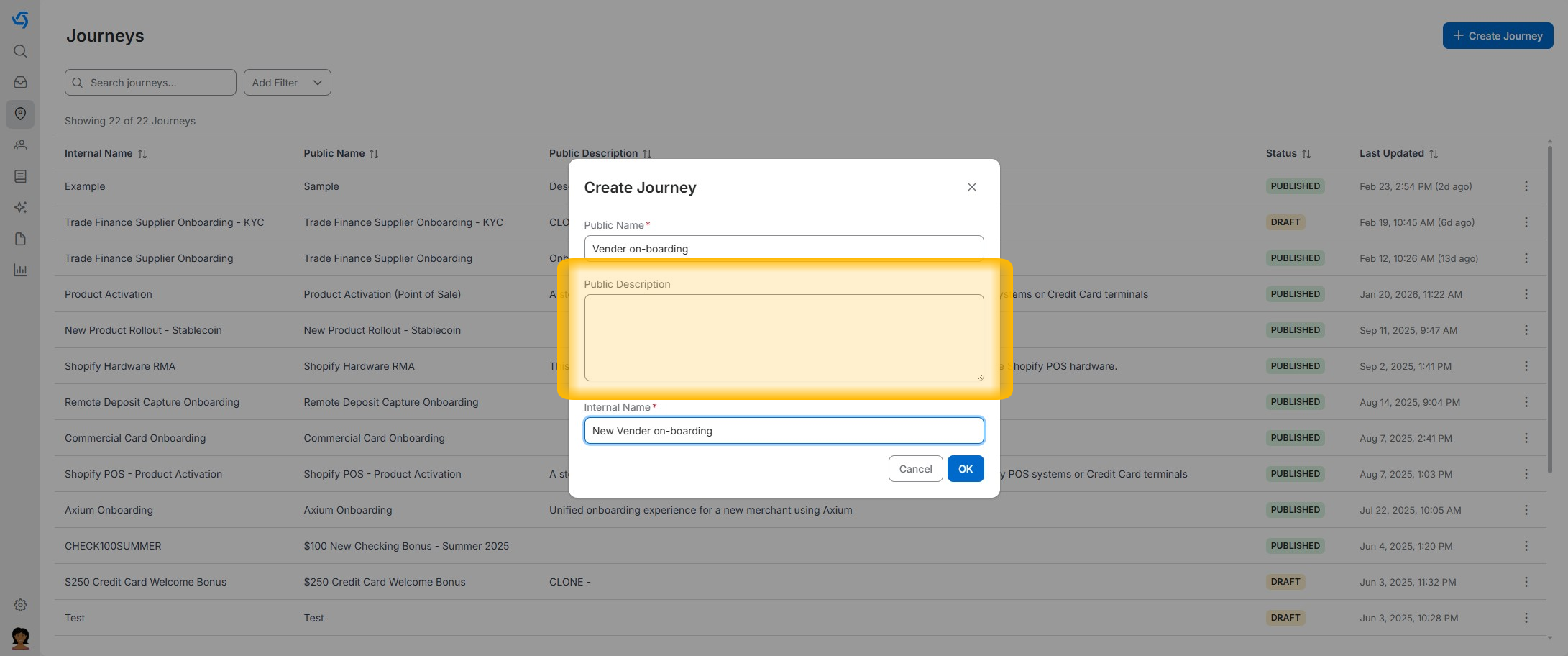
- Click OK to create the Journey

- Click Create First Stage

- Enter a Public Name
Note: This will be visible to customers
- Enter an Internal Name
This will only be visible internally and should reflect internal terminology
- If needed, you can enter a Public Description
Note: This will be visible to customers
- Click Apply

- To add additional stages, Click + Stage

- Continue to add as many stages as needed

- Next, add Steps inside of the Stages. Click Steps

- Add a Step, Path, or Parallel Steps as needed by dragging and dropping it into place
Or Click to add to the bottom
- Set the Step visibility to Internal or Customer as desired

- Enter a Public Name
Note: This will be visible to customers
- Enter an Internal Name
This will only be visible internally and should reflect internal terminology
- If needed, you can enter a Public Description
Note: This will be visible to customers
- Click Apply to save your changes

Note: Changing a Journey after it has been created will only affect new attatchments. Existing Journyes will not be updated.