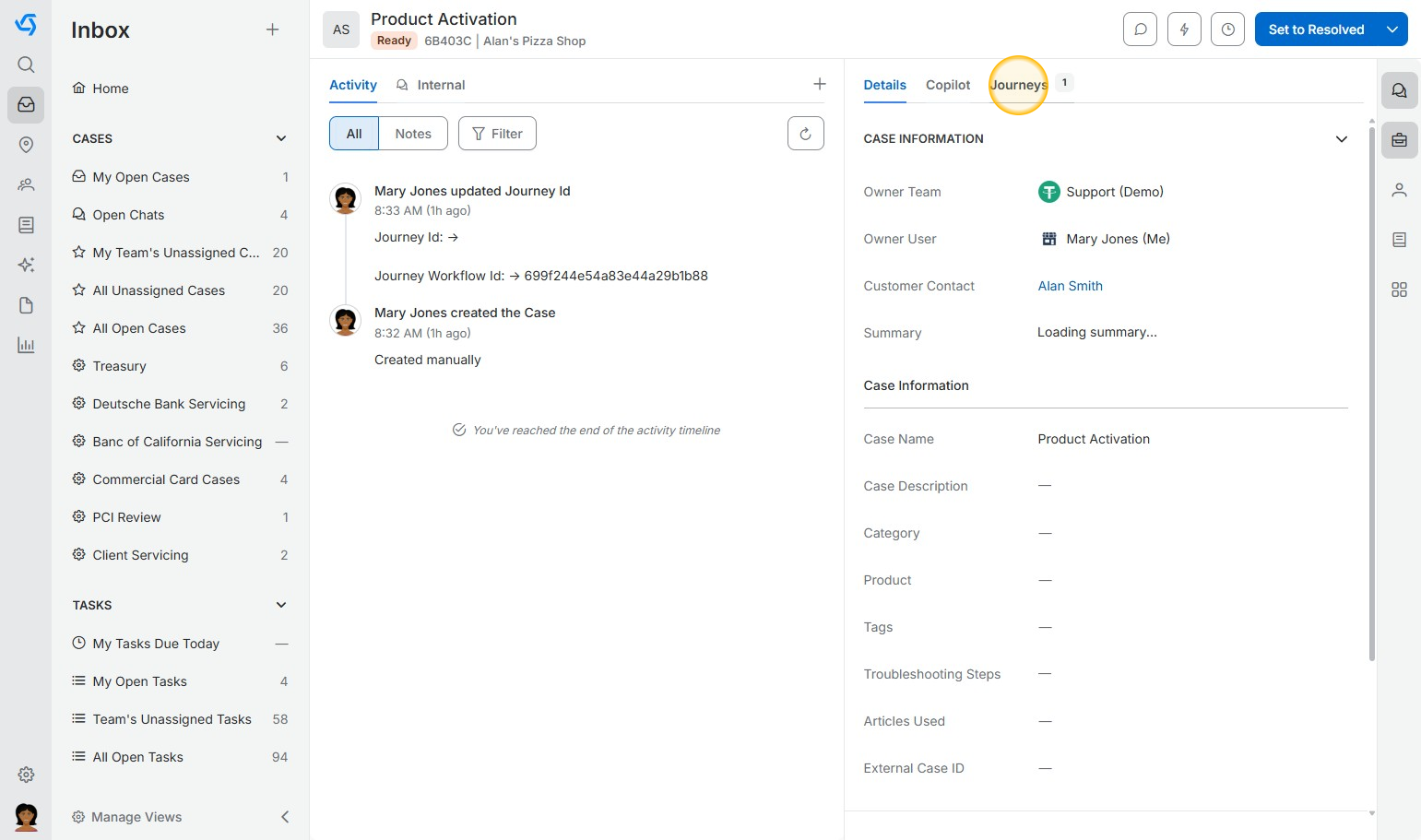
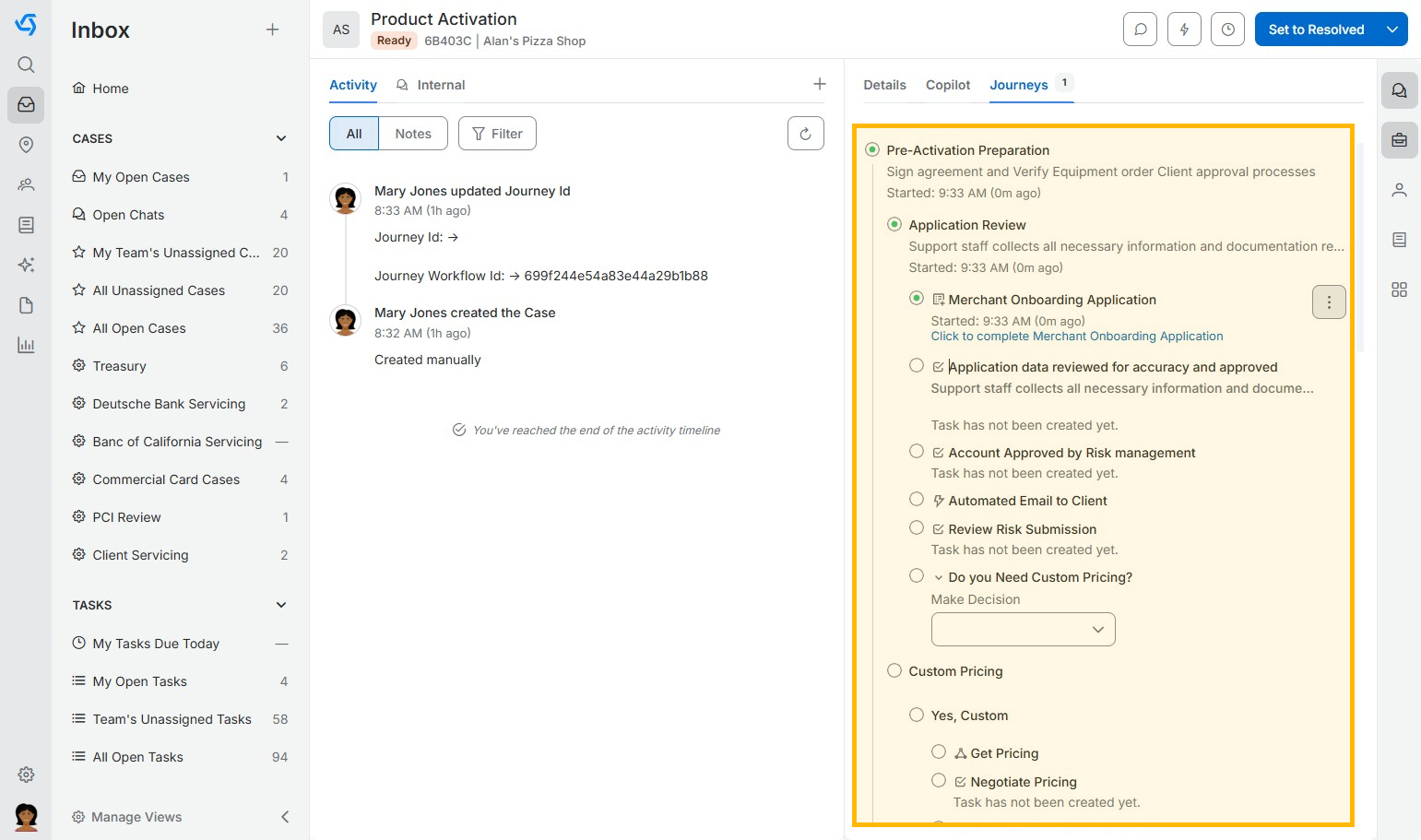
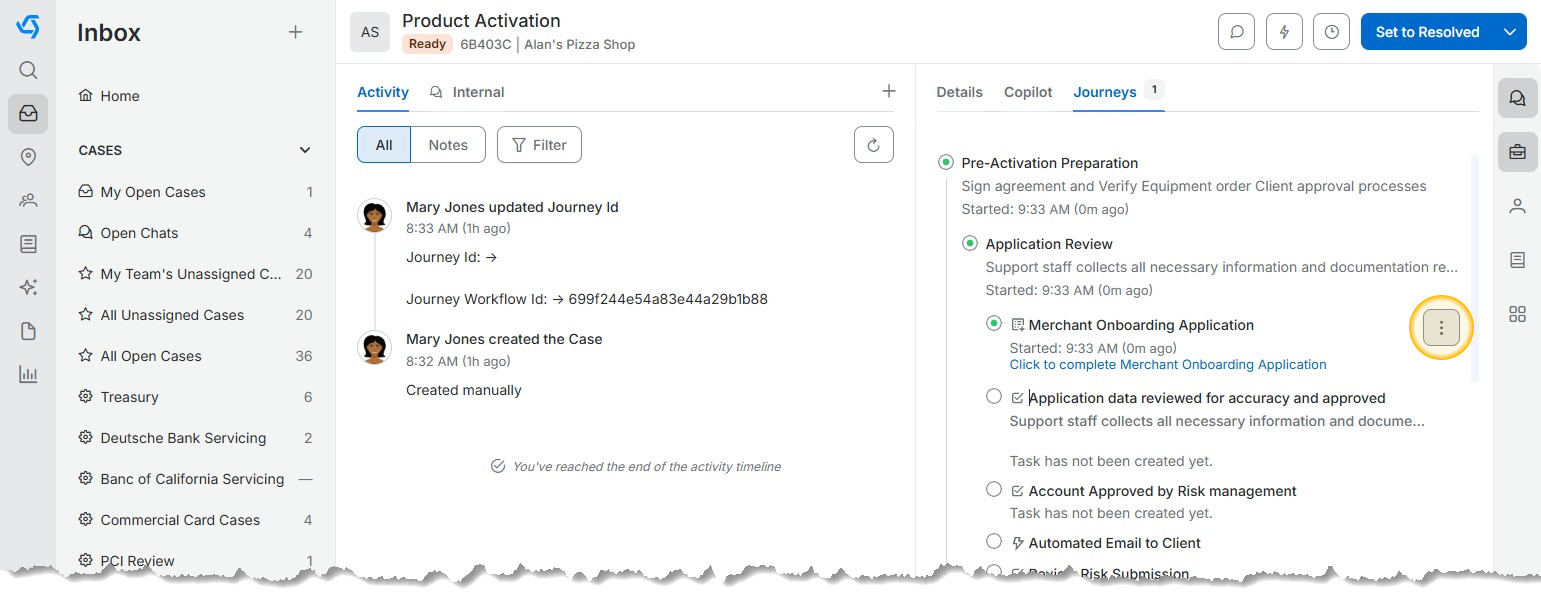
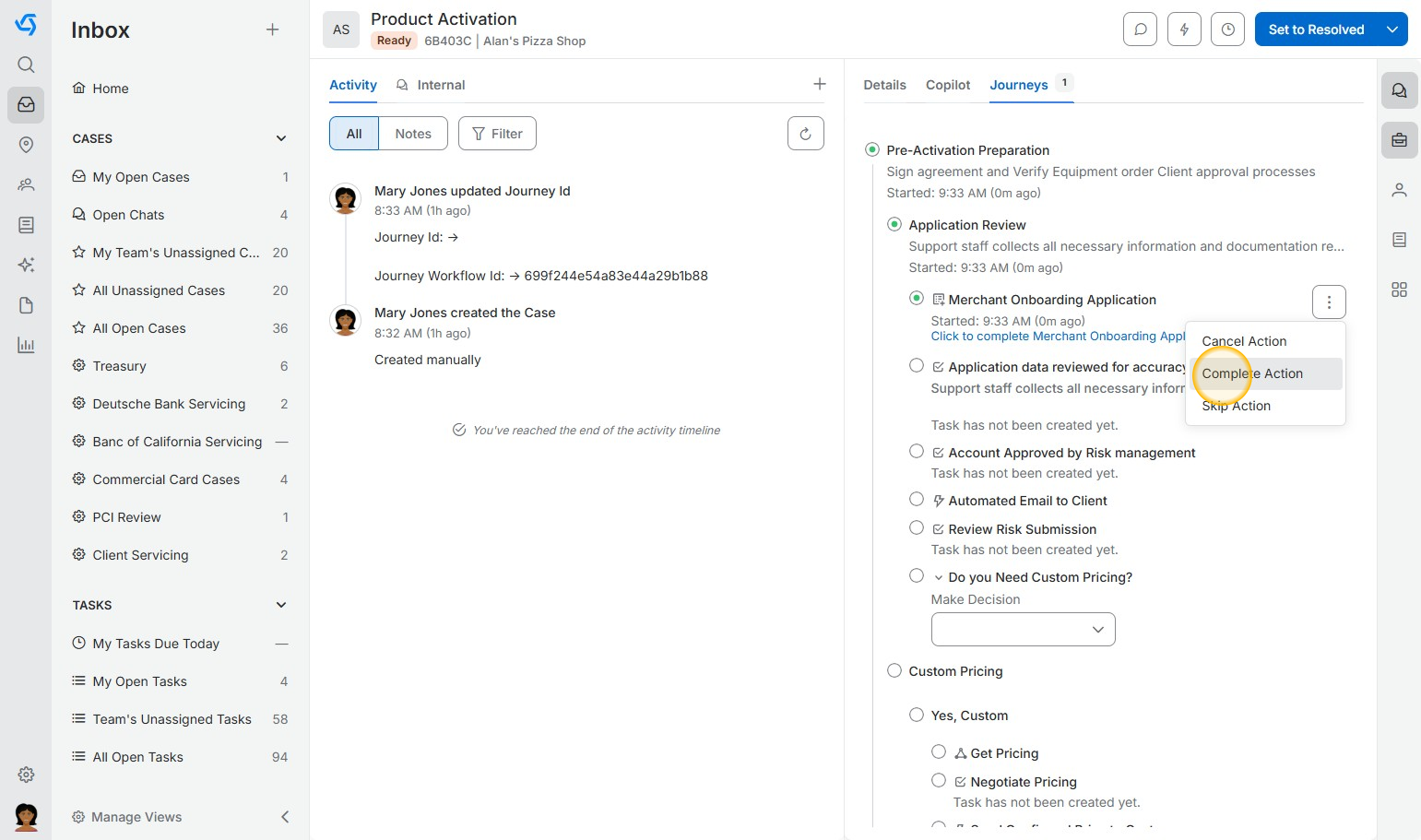
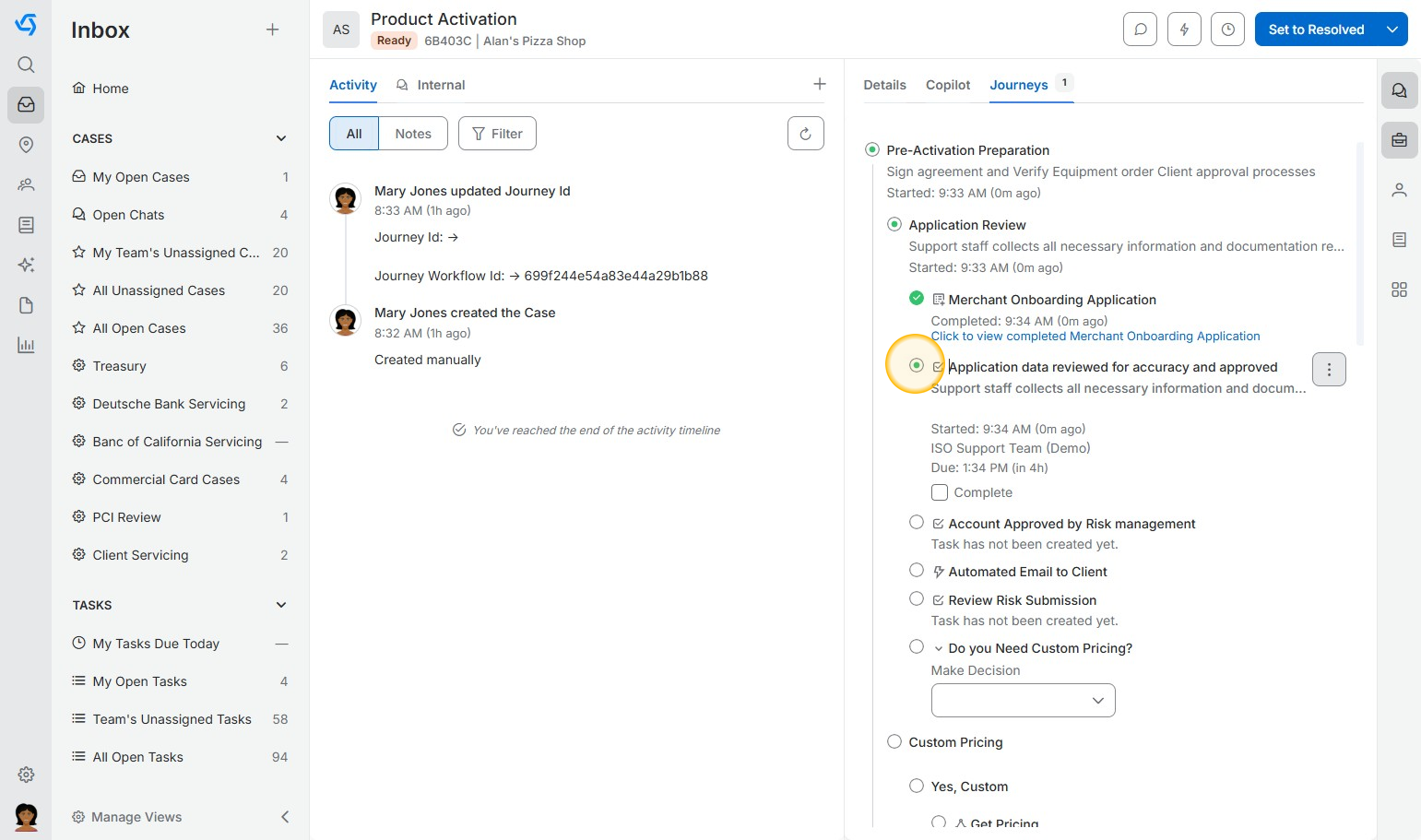
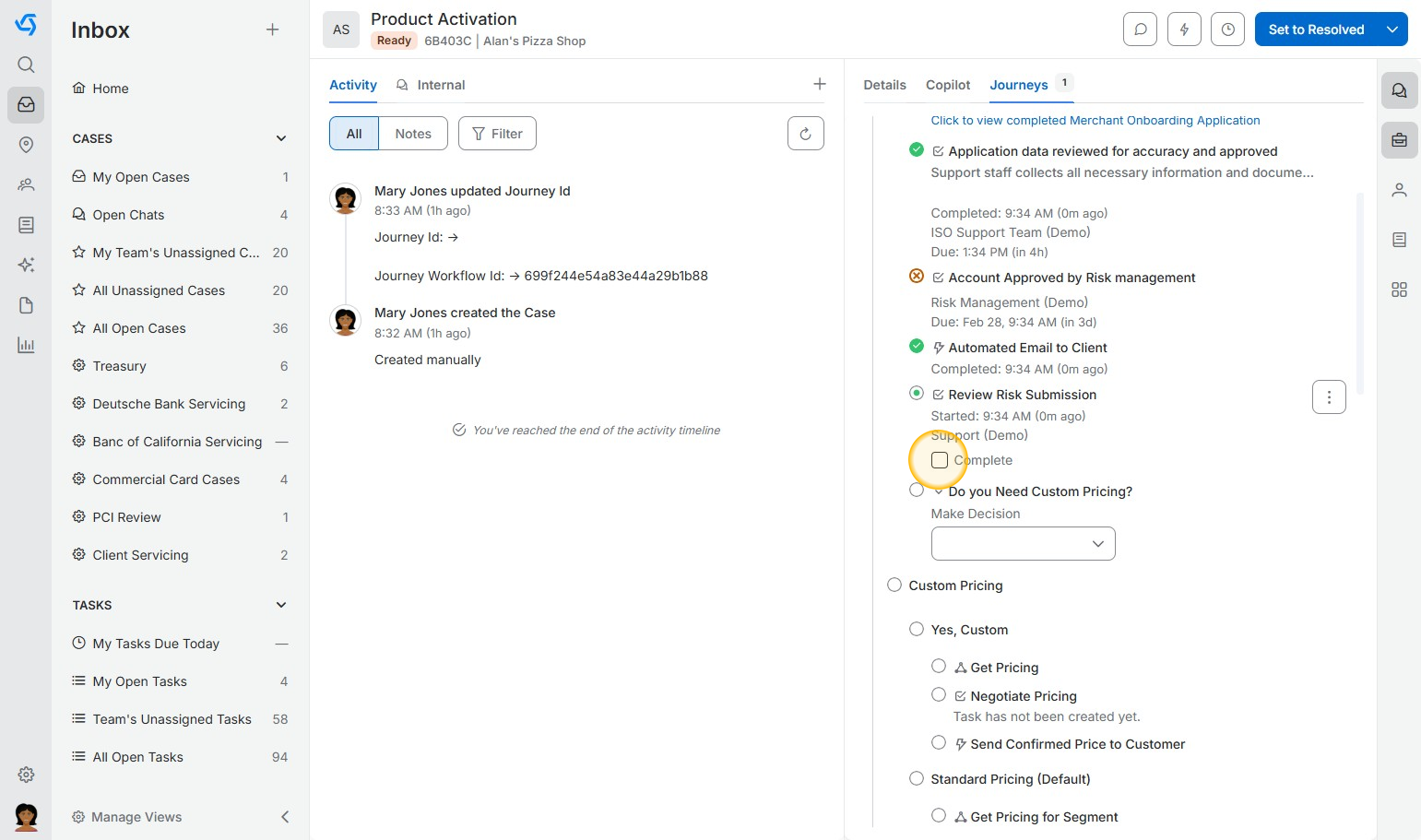
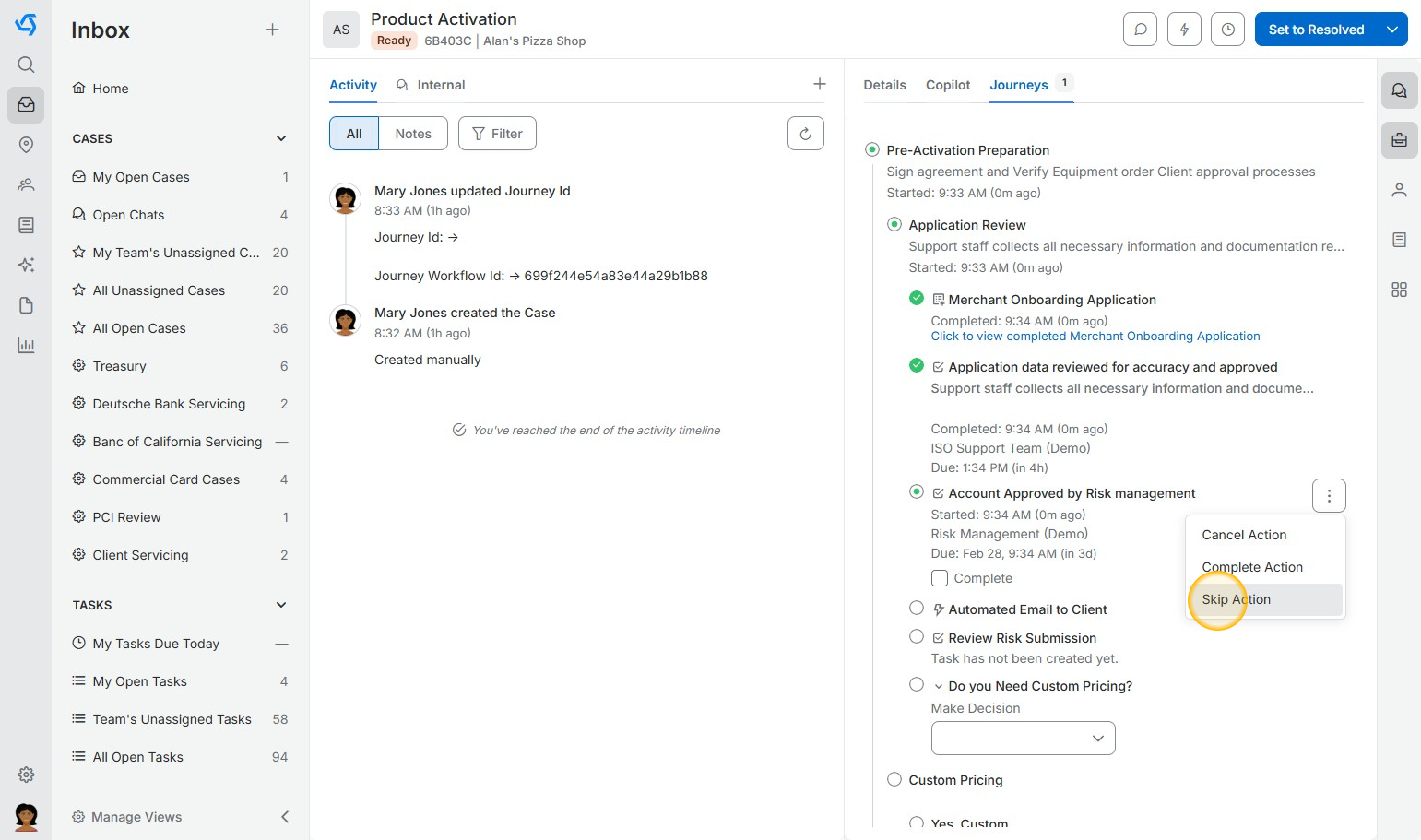
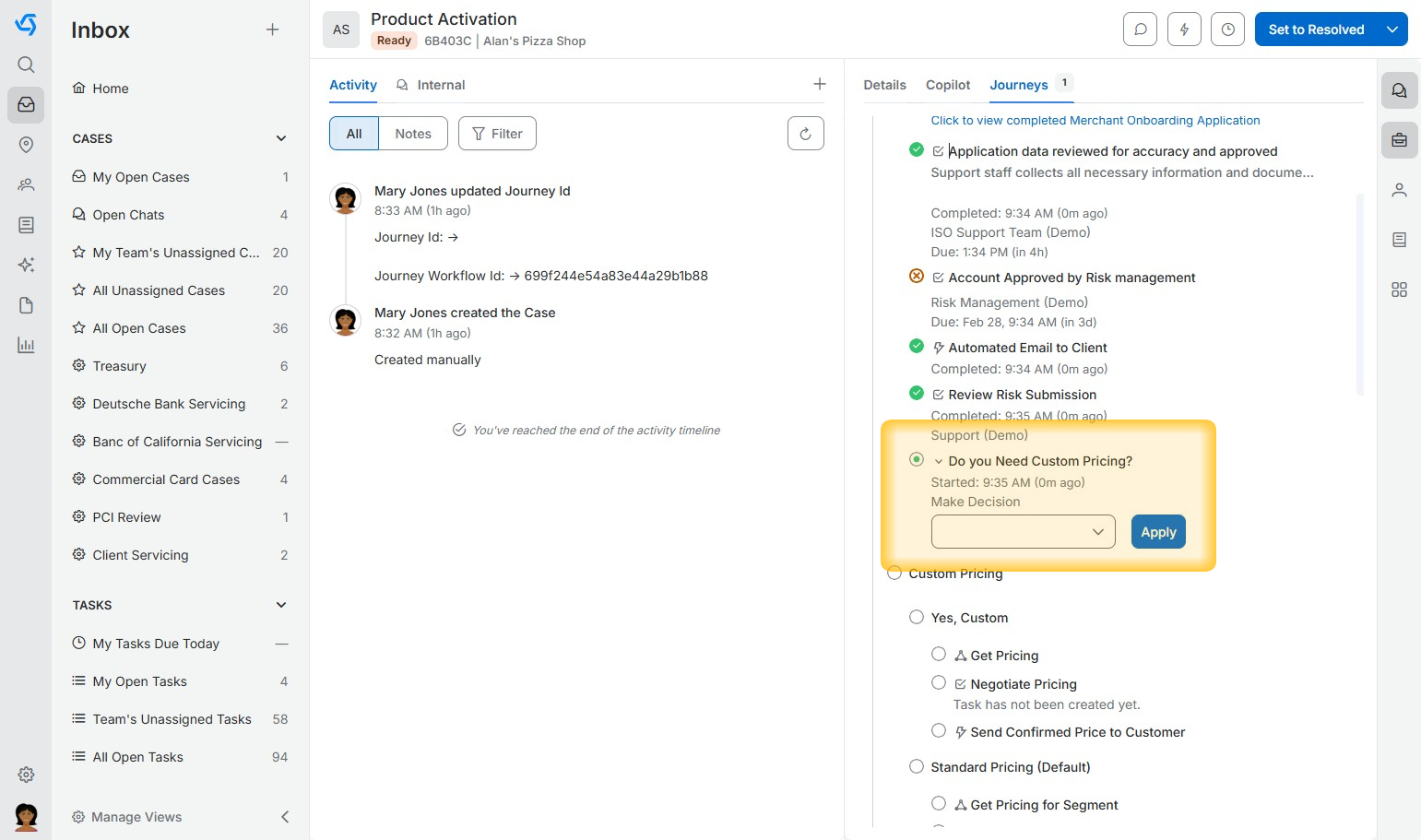
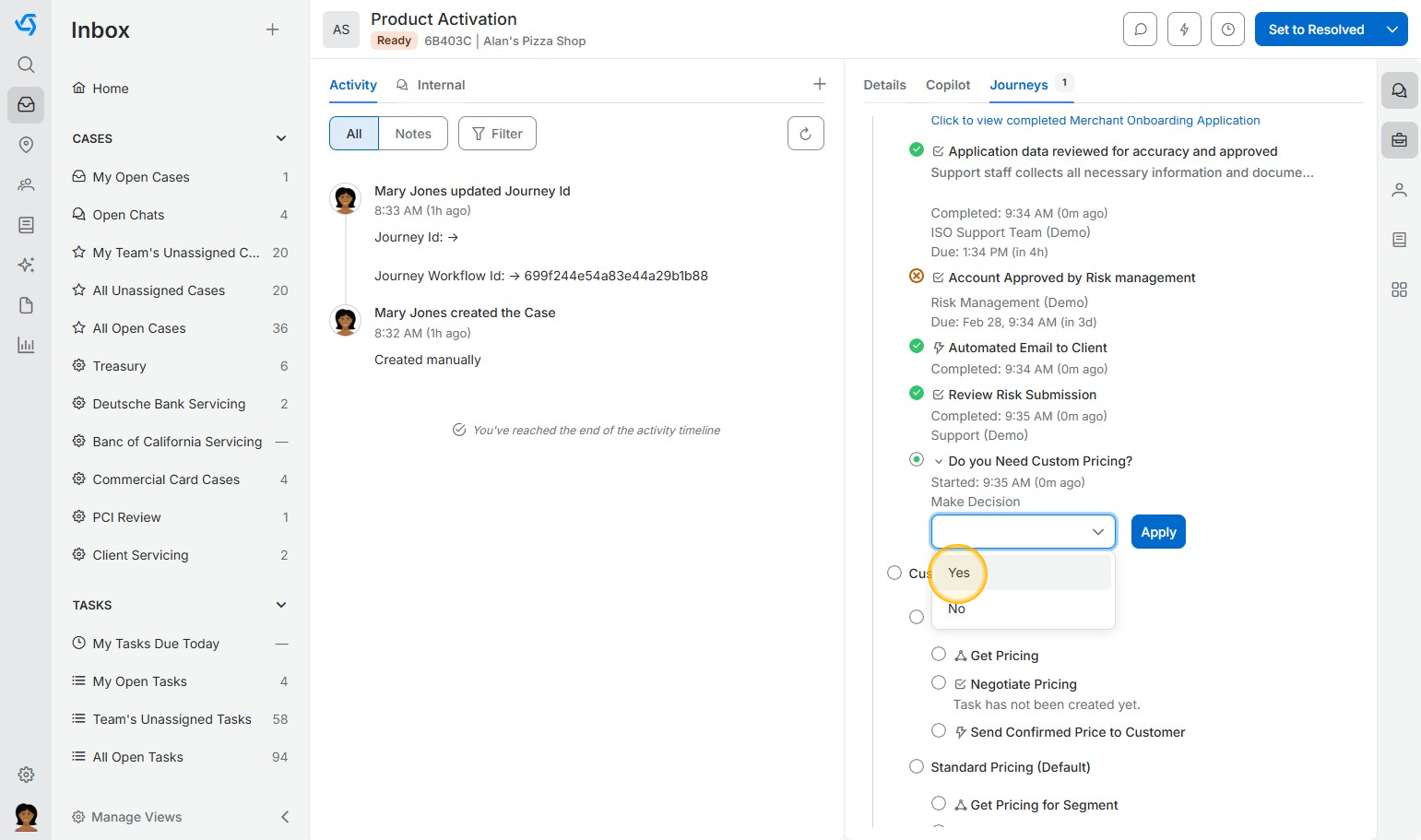
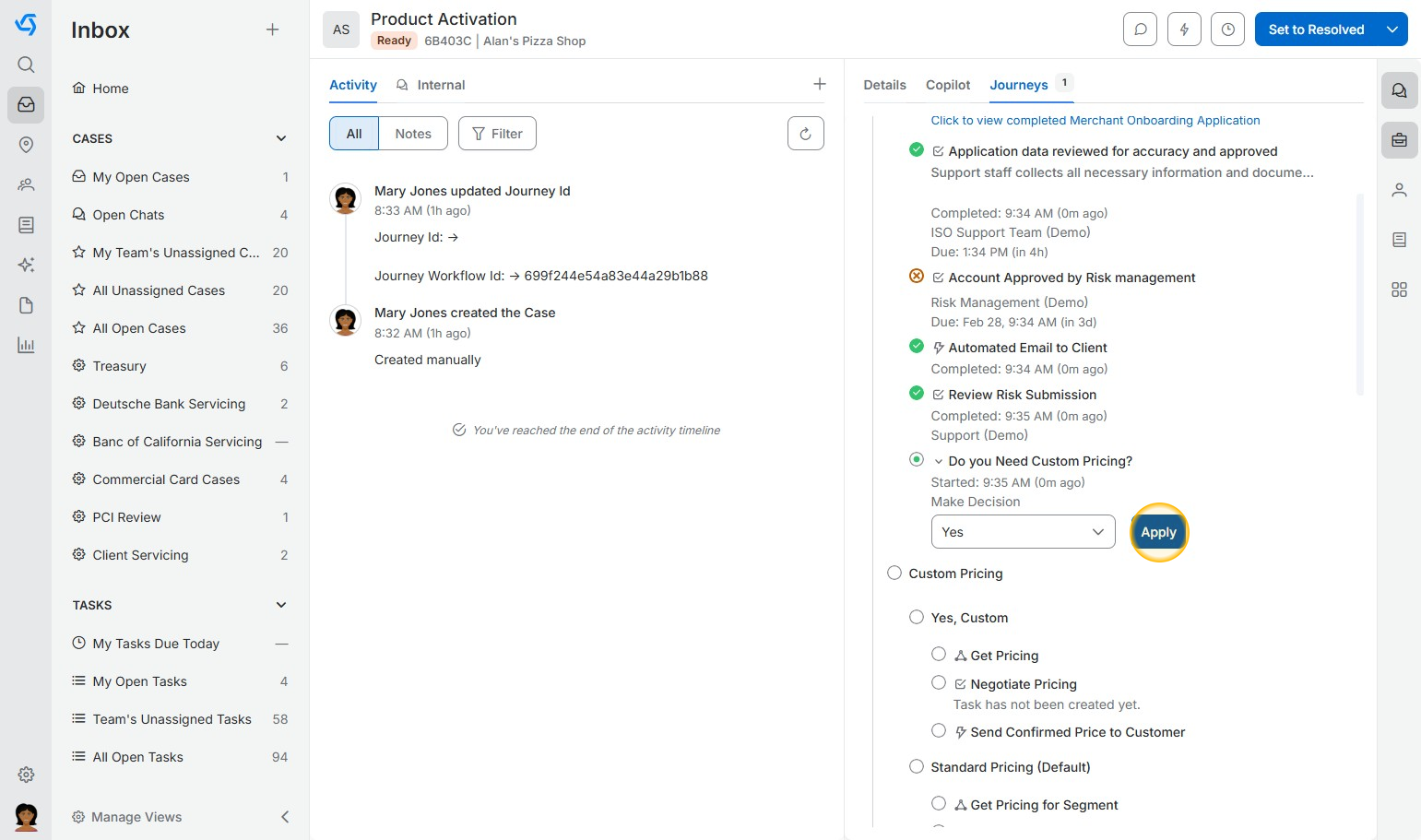
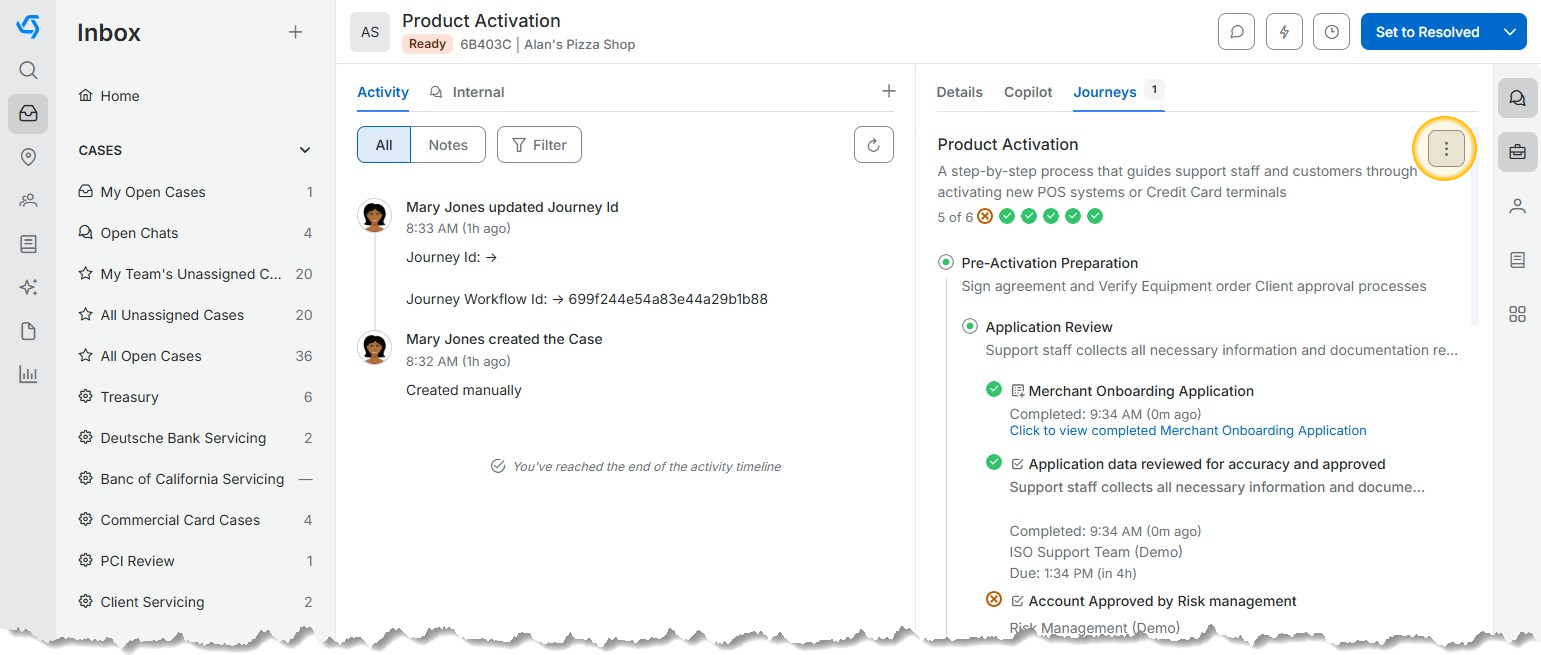
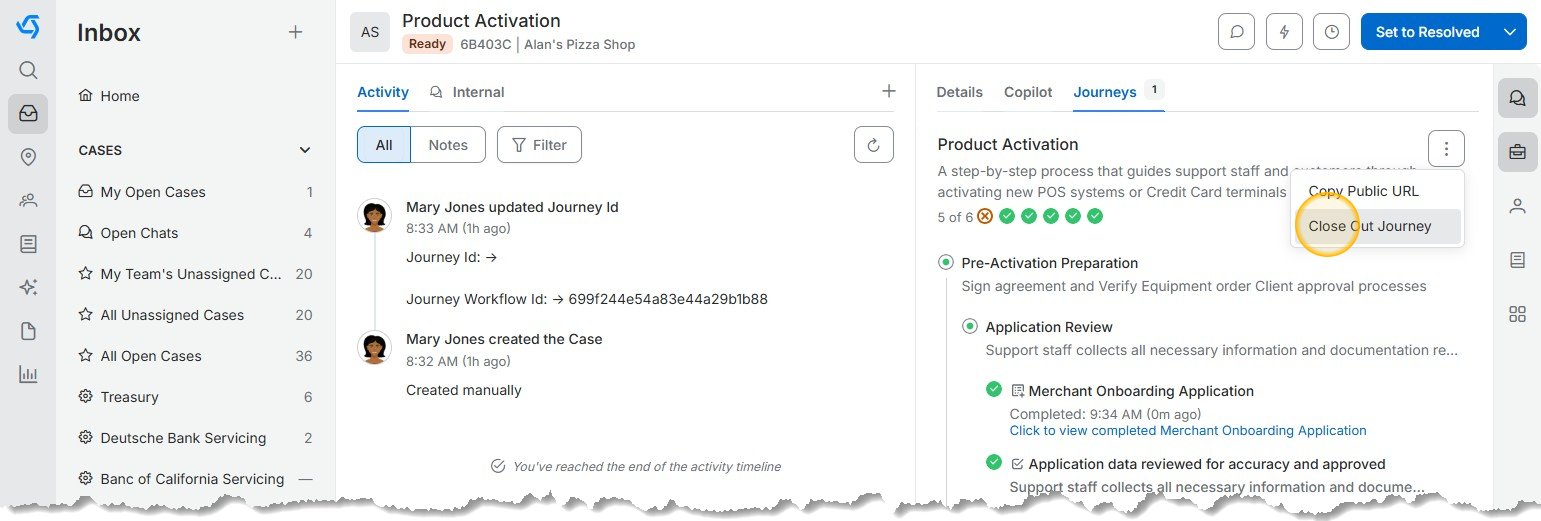
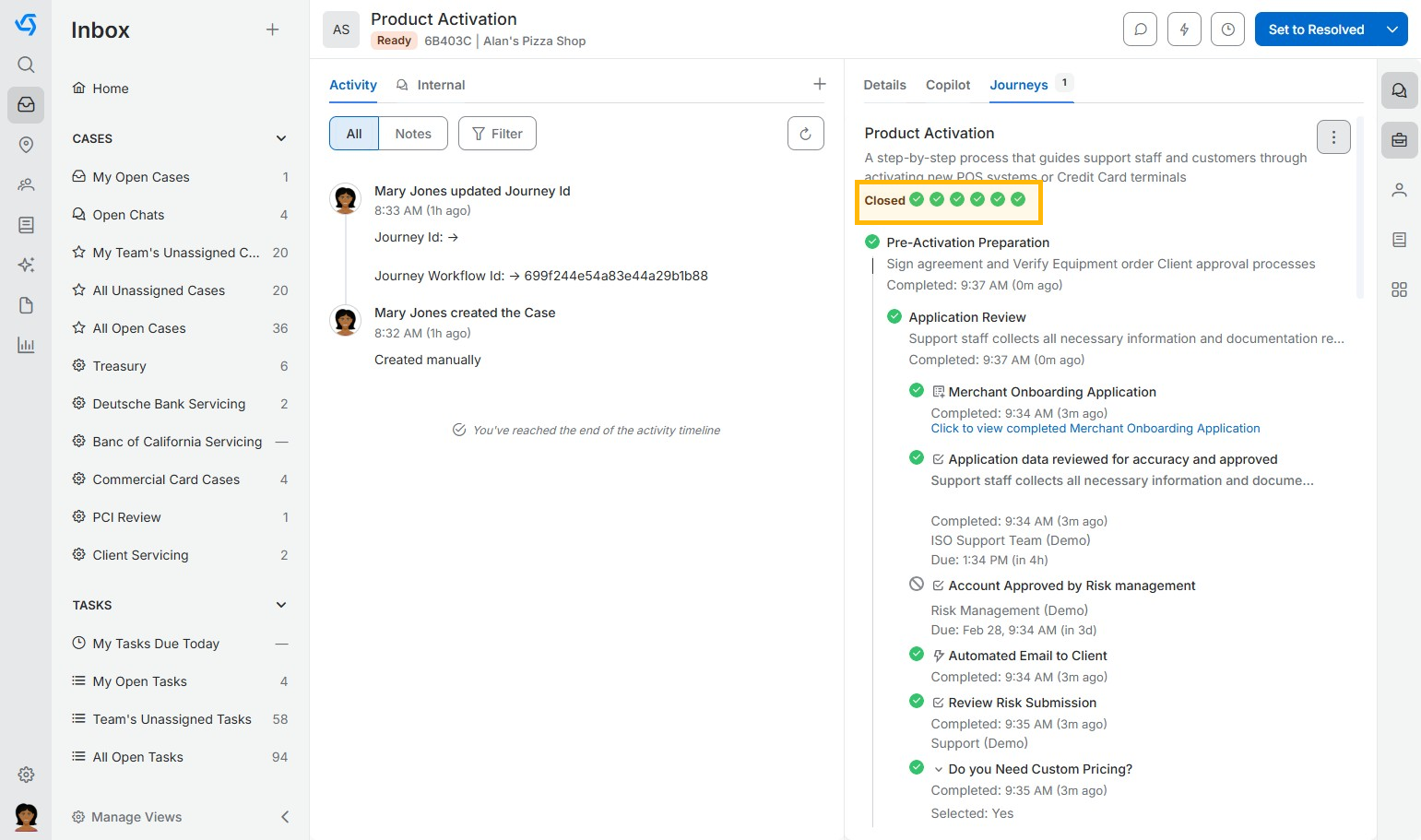
Complete a Journey - App V5 Last Updated: March 3, 2026 What's in this article? Click Journeys from the Case DetailsPerform the steps listedWhen done with a Task, Click the Ellipses menuClick "Complete Action" to mark the Task as completeYou will now be moved to the next TaskYou can also click the "Complete" box under the Task to complete it when availableIf needed you can also skip an task by selecting Skip ActionSome Tasks require that a decision be made, or option selectedUse the drop-down to make a selectionChoosing an option will move the journey to the next TaskClick Apply to complete the TaskWhen all tasks in a Step have been completed, the Step will be marked as CompletedWhen all of the Steps have been completed the Stage will be marked as complete.When all of the Stages are complete and the journey has been finished you will Closeout the Journey by selecting the eleipses menu for the JourneyClick Close Out JourneyThe Journey will now show as closed